Auto Emailing before or after Actions
Send automated emails at a set timeframe before or after an action is scheduled or completed. For example, you may want to auto send an email 24 hours before the template happens or you may want to send an email after an install is completed successfully. Once the auto email has been sent, the "Action History" tracks the status.
Before an Action Occurs
In this example, we sent an email 24 hours before the template with instructions on how to ensure the room is prepped for measuring.

Senders (From) Email
The email will be sent from the action user's email - in this example, it would come from the Templater. Ensure the templater's email is the one you want or if you would like the auto email to come from another user's email, work with your account manager or see steps below for connecting auto emails to users.

Want to send an auto email right after a template or install is scheduled with the date and how your customer can prepare? Check this out...
Sending Emails after Scheduling an Action
After an Action is Scheduled
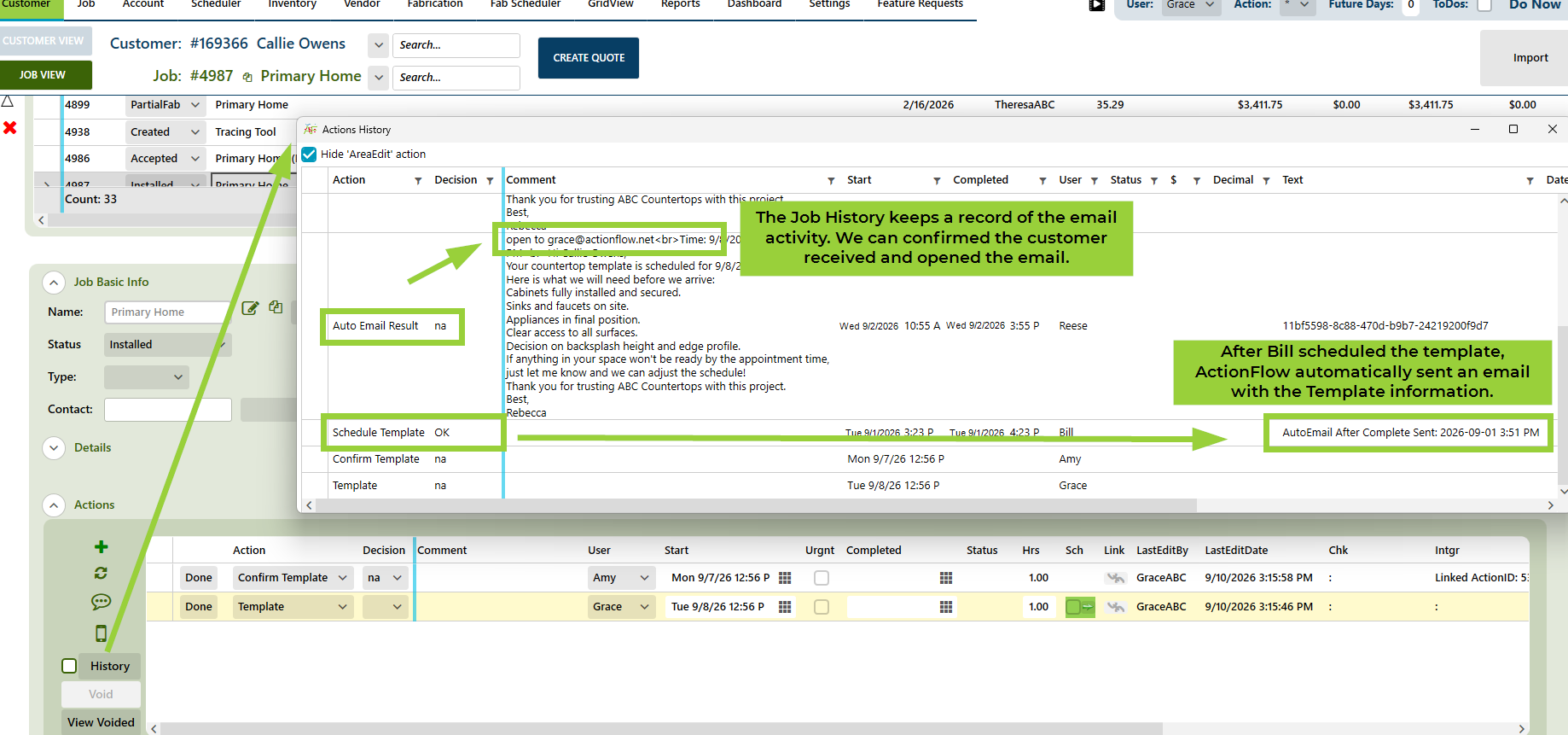
In this example, we sent an email after the template had been scheduled. The email went out an hour after the "Schedule Template" action was completed which is about a week before the scheduled template.
Trigger Emails with Selected Action DecisionsThe auto email can be configured to trigger only for selected decisions - in this example, it only goes out for the "Ok" decision so that if the template wasn't scheduled and the decision was something like "no contact," the auto email would not go out. Work with your account manager or see the set up instructions below to ensure the auto email is configured for the decisions you intend.
Senders (From) Email
The email will be sent from the action user's email - in this example, it would come from the user who completed the "Schedule Template" action. If you would like the auto email to come from another user's email, work with your account manager or see steps below for connecting users to auto emails.
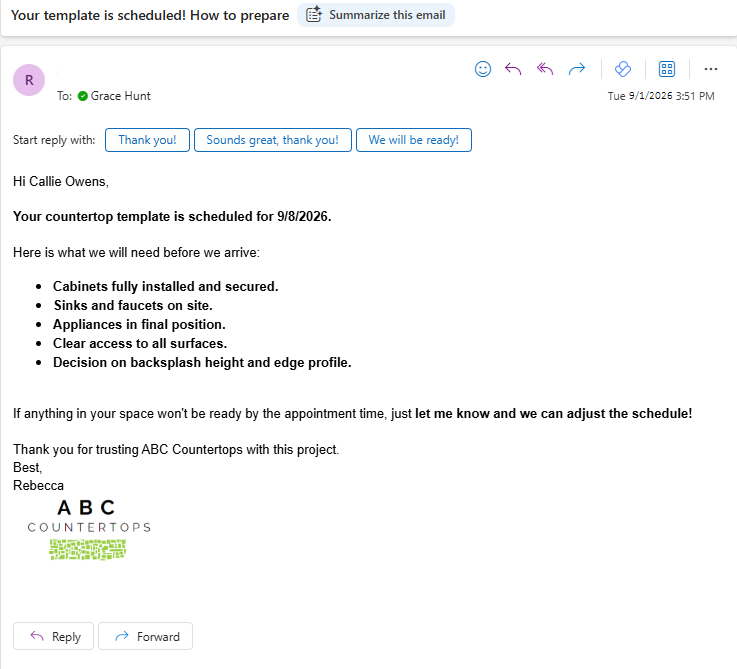
It had the date of the template and how the customer could prepare.
Trigger Emails with Selected Action Decisions
The auto email can be configured to trigger only for selected decisions - in this example, it only goes out for the "Ok" decision so that if the template wasn't scheduled and the decision was something like "no contact," the auto email would not go out. Work with your account manager or see the set up instructions below to ensure the auto email is configured for the decisions you intend.
Senders (From) Email
The email will be sent from the action user's email - in this example, it would come from the user who completed the "Schedule Template" action. If you would like the auto email to come from another user's email, work with your account manager or see steps below for connecting users to auto emails.
After an Action is Completed
In this example, we sent an email to the customer after a successful install that included pictures of the finished countertops.
Trigger Emails with Selected Action Decisions
The auto email can be configured to trigger only for specific decisions - in this example, it only goes out for the "Ok" decision so that if the install had an issue the auto email would not go out. Work with your account manager or see the set up instructions below to ensure the auto email is configured for the decisions you intend.
Senders (From) Email
The email will be sent from the action user's email - in this example, it would come from the Installer. Ensure the installer has the email you intend or if you would like the auto email to come from another user's email, work with your account manager or see steps below for connecting auto emails to users.
The images are stored in a job folder called "Install Photos" which can be included as a link in the auto email.

The image file must be a .png or .jpg. PDF files are not currently supported.
Setup
To setup auto emailing:
- Go into the Processes tab
- Select the process
- Find the Action Definitions grid in the bottom left of the screen
- Find an action for auto emailing - depends on the scenario for which you want the auto email (see below)
- Scroll to the right and open "Settings" in the Auto Email section
After an Action is Scheduled
To send out an email after an action has been scheduled, the auto email can be attached to the "Scheduling" action, not only the scheduled action.
- Find the "Schedule" action, scroll to the right and click "Settings" in the Auto Email section.
- Find the "Message After Complete" section in the bottom of the window.
- Add the email subject and body using the text boxes or open up the "Rich Text" window for rich formatting.
- You will likely want to check "Trigger by Decisions" to select which decisions will trigger an auto email. For example, if there were any issues with scheduling, you would not want that auto email to go out.
- Add the number of hours AFTER the action has been completed to send out the auto email.
- Add an entry or entries to the "If Decision" section which ensures that the related action has been scheduled. This ensures the auto email can correctly attach the scheduled date for the action.
- Ensure the "Scheduled" action is recorded in the Decision grid with the "Scheduled" Requirement Type. This ensures that the scheduling action cannot be completed unless there is a scheduled action and the email can include the correct date.
Before an Action Occurs
For a scheduled action, the auto email can be attached to the action itself.
- Find the action, scroll to the right and click "Settings" in the Auto Email section.
- Find the "Message Before Complete" section in the top of the window.
- Add the email subject and body using the text boxes or open up the "Rich Text" window for rich formatting.
- Add the number of hours BEFORE the action has been completed to send out the auto email.
After an Action is Completed
To send out an email after an action has been completed, the auto email is attached to the action itself.
- Find the action, scroll to the right and click "Settings" in the Auto Email section.
- Find the "Message After Complete" section in the bottom of the window.
- Add the email subject and body using the text boxes or open up the "Rich Text" window for rich formatting.
- You will likely want to check "Trigger by Decisions" to select which decisions will trigger an auto email. For example, if there were any issues with scheduling, you would not want that auto email to go out.
- Add the number of hours AFTER the action has been completed to send out the auto email.
Including Images
To include an image link in the auto email, set up a folder in the job.
Add the name of that folder to the "Images Folder" field. (see screenshot directly above)
The image file must be a .png or .jpg. PDF files are not currently supported.
We recommend creating a Default Folder that will be added for each job.
Setting the "From" Email
Auto emails will be sent from the action user's email. In the case of installers, templaters, or shop users, you may want to add an office user email's to their users. Alternatively, you could attach a user to the auto email, for example, a scheduler or project manager.